How to Sign a PDF Without Printing It (and When a Drawn Signature Isn't Enough)
Print, sign, scan, email: there's a quicker way for most everyday forms. Here's how to add your signature to a PDF in your browser, where to place it, and the cases where a simple signature image won't be accepted.
In this article expand_more
- First, know what kind of signature you're adding
- How to sign a PDF in your browser
- Getting the position right without guesswork
- Before you sign: fix the file itself
- When a signature image is not enough
- A few small things that make a signed PDF look professional
- Frequently Asked Questions
- Is a signed PDF made this way legally valid?
- Is my document uploaded anywhere?
- Can I sign on more than one page?
- Why does my signature look blurry?
- Can I remove a signature after adding it?
Someone sends you a PDF and says "please sign and send back today". You don't have a printer at home, the cyber café is closed, and the form is three pages long. For years the routine was print, sign, scan, email. For most everyday paperwork, you can skip all four and do it on your phone or laptop in a couple of minutes.
This guide walks through adding a signature to a PDF with our free Sign PDF tool, how to get the position right the first time, and, just as importantly, when a signature image isn't the right kind of signature at all.
First, know what kind of signature you're adding
When people say "sign the PDF", they can mean two quite different things.
A signature image. This is a picture of your handwritten (or typed) signature placed on the page, exactly as if you had signed on paper and scanned it. Nothing hidden is attached to the file. It's what most people need for a consent form, a society notice, an internal approval or a rental document that the other side is happy to receive by email.
A certificate-based digital signature. This uses a cryptographic key tied to your identity, such as a Digital Signature Certificate (DSC) or Aadhaar-based eSign in India. A PDF reader can check it and will show a signature panel saying who signed and whether the file was changed afterwards. Income tax filings by some taxpayers, company filings and many government portals ask for this kind specifically.
Our tool does the first kind only. That's fine for a lot of paperwork, but if a portal or a bank says "DSC" or "eSign", a picture of your signature won't do, however neat it looks.
How to sign a PDF in your browser
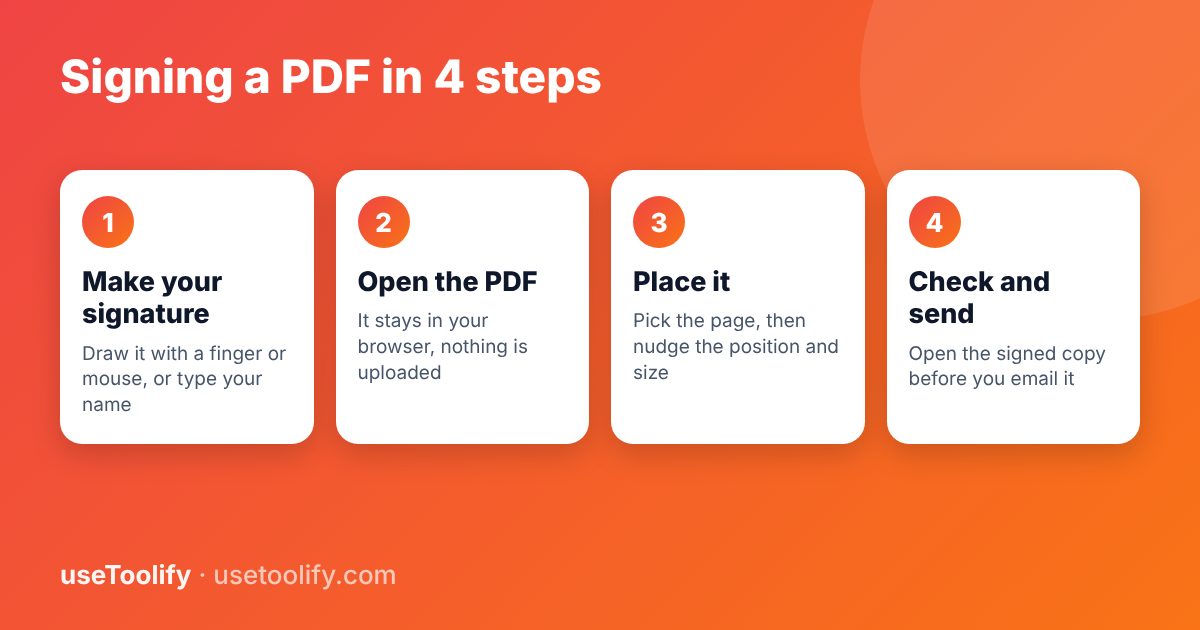
- Create the signature. Open Sign PDF and choose Draw or Type. Drawing works best with a finger on a phone or a stylus; with a mouse, go slowly and sign bigger than feels natural, because it gets scaled down later. Pick blue or black ink, then press Use This Signature.
- Add your PDF. Drop the file onto the upload area. It is read inside your browser using a PDF library, so the document isn't sent to our server.
- Choose where it goes. The page number starts on the last page, which is where most forms put the signature line. Then set the position and width as percentages of the page (more on that below).
- Download and check. Press Embed Signature & Download PDF. Open the downloaded copy, zoom in on the signature line, and only then send it.
Getting the position right without guesswork
The tool asks for three numbers: how far from the left edge the signature starts (X), how far from the top it starts (Y), and how wide it is. All three are percentages of the page, which sounds fiddly but is easy once you think of the page as a grid from 0 to 100 each way.
Say the signature line on an A4 form is in the lower right corner. A good first try is X 60, Y 82, width 30. On an A4 page that puts the left edge of your signature about 357 points from the left and its top about 690 points from the top, and the signature is about 179 points wide, which is roughly 6 cm. If it lands a little high, add 2 or 3 to Y and run it again. Two attempts is normal.
Two habits save time. Keep X plus width at 100 or less, or the signature runs off the edge of the page. And sign large on the pad: a small scribble that's scaled up looks blurry, while a big one scaled down stays crisp.
Before you sign: fix the file itself
A surprising number of "signing" problems are really problems with the PDF. Sort these out first, because once a signature is on the page you'll have to redo it if the pages change.
- Sideways scans. If a page was scanned in landscape, turn it upright with Rotate PDF.
- Pages in the wrong order, or a blank back page that crept in: drag them into place or delete them with Rearrange PDF Pages.
- The form and the ID proof are separate files. Combine them with Merge PDF and sign the combined file once.
- The upload limit is tiny. Signing adds very little, but if the original was already near a portal's limit, run it through Compress PDF afterwards. We've written more about merging and compressing PDFs for upload.
- Password-protected files usually won't load. Ask whoever sent the document for an unprotected copy rather than trying to work around it.
When a signature image is not enough
In India, the Information Technology Act, 2000 gives legal recognition to electronic signatures, and the methods it specifically recognises are digital signatures issued through licensed certifying authorities and techniques such as Aadhaar eSign. A drawn or typed signature image isn't one of those listed methods. It can still be perfectly acceptable where the other party agrees to it and there's clear evidence you meant to sign, which is why so much day-to-day paperwork works this way.
The Act also excludes some documents from electronic signing altogether, including wills, trust deeds, most powers of attorney and most negotiable instruments. Those still need the traditional route.
The practical rule: if the person or office asking for the document hasn't said how it must be signed, a clear signature image is usually fine. If they mention DSC, eSign, notarisation or "wet ink", do exactly what they ask. And for anything with real legal or financial weight, such as a sale agreement or a loan document, check with the other party or a lawyer before relying on a signature image. This article is general information, not legal advice.
A few small things that make a signed PDF look professional
- Use blue ink if the document is mostly black text. It makes the signature obviously "added" rather than printed, which is what many offices expect from a signed copy.
- If the form also asks for a date and place, type them into the form before signing, or write them in the same signature pad session as part of a single image.
- Rename the file before sending, for example rental-agreement-signed-14-oct.pdf. Whoever receives it will thank you.
- Keep your unsigned original. If anything needs correcting later, you'll want to start from the clean version, not stack a second signature on the first.
Frequently Asked Questions
Is a signed PDF made this way legally valid?
It depends on the document and who is receiving it. Many organisations accept a signature image for routine paperwork. Where a law or the recipient requires a digital signature certificate or Aadhaar eSign, an image isn't a substitute. When in doubt, ask the recipient what they accept.
Is my document uploaded anywhere?
No. The PDF and your signature are processed in your browser, and the signed copy is created on your device. The page only records an anonymous visit, not the file.
Can I sign on more than one page?
The tool places one signature per run. For a second page, run the signed file through again with a different page number. Each pass takes a few seconds.
Why does my signature look blurry?
It was probably drawn small and then enlarged. Clear the pad, sign bigger, and keep the width setting modest, around 20 to 30 percent of the page.
Can I remove a signature after adding it?
Not from the signed copy, because it becomes part of the page. Go back to your original unsigned file and sign it again.
Try the tools mentioned in this article
Free, browser-based, no account needed.
arrow_back Previous
How to Extract Text from a PDF (and When You Need OCR)
Next arrow_forward
How to Crop an Image in Any Shape (Freehand, Transparent PNG)
Get new tool tutorials in your inbox
No spam — just new posts, occasionally.
Comments (0)
No comments yet — be the first to share your thoughts.