How to Convert PDF to JPG and JPG to PDF Free (Without Losing Quality)
Turn PDF pages into JPG images or combine photos and scans into one PDF. Learn the right resolution, page order and file-size tricks so the result looks sharp.
In this article expand_more
- When to Convert PDF to JPG
- How to Convert PDF to JPG
- Choosing the Right Resolution
- JPG or PNG?
- When to Convert JPG to PDF
- How to Combine Images Into One PDF
- Get Better Results From Phone Photos
- Keep the File Size Under Control
- Frequently Asked Questions
- Does converting PDF to JPG reduce quality?
- Can I convert only one page of a PDF to JPG?
- Why is my PDF so large after converting images?
- Are my files uploaded when I convert them?
Sometimes you need a PDF page as a picture, for a slide, a social post or a form that only accepts images. Other times you have photos or scans that must be submitted as a single PDF. Both conversions are quick, but the settings decide whether the result is sharp or blurry and whether the file is a sensible size. This guide covers both directions with the free PDF to JPG and Images to PDF tools, which run in your browser.
When to Convert PDF to JPG
- You need one page as an image for a presentation, a blog post or a chat message.
- A website or form accepts images but not PDFs.
- You want a preview picture of a document.
- You want to edit a page in a photo editor.
If you only need the text, copy it from the PDF instead. Converting to an image turns text into pixels, which cannot be searched or selected.
How to Convert PDF to JPG
- Open PDF to JPG and add your file.
- Choose the pages you want, or convert all of them.
- Pick the quality or resolution (see below).
- Download the images. A multi-page PDF becomes one JPG per page.
Choosing the Right Resolution
Resolution is measured in DPI (dots per inch). A standard A4 page is 8.27 x 11.69 inches.
- 72 to 96 DPI - fine for quick on-screen viewing, but text looks soft when zoomed. About 600 x 840 pixels for A4.
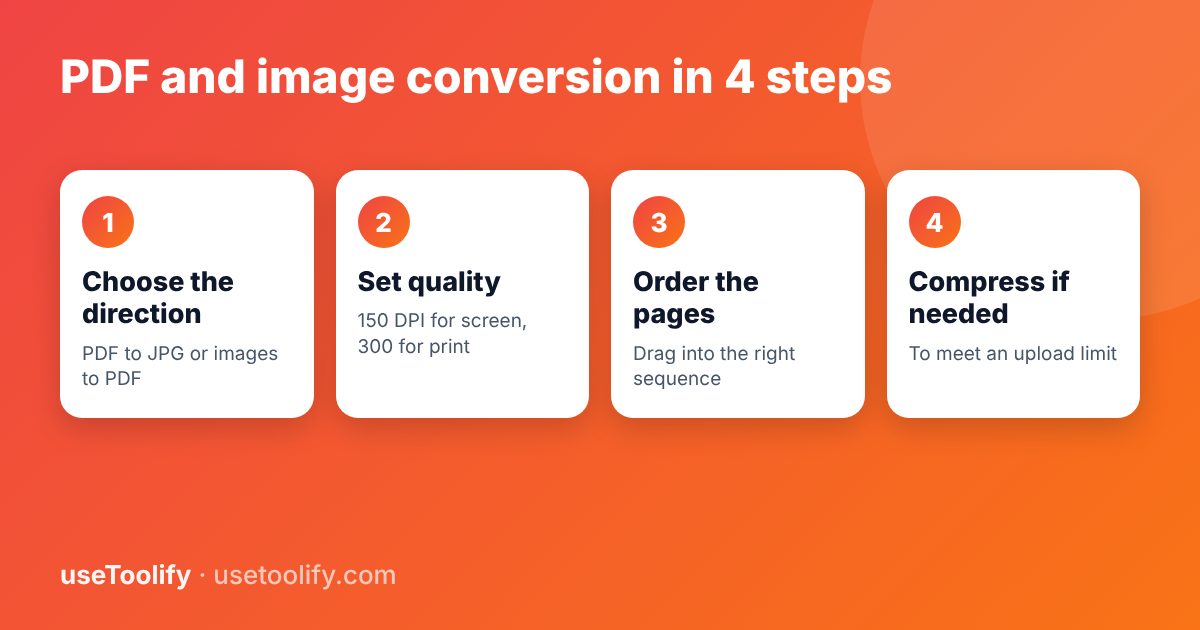
- 150 DPI - a good balance for screens, email and uploads. About 1240 x 1754 pixels for A4.
- 300 DPI - for printing and for small text you need to read. About 2480 x 3508 pixels for A4, and much larger files.
Start at 150 DPI. Move to 300 only if text is hard to read or you plan to print.
JPG or PNG?
JPG is smaller and suits photos and scanned pages. It can leave faint blur around sharp text. PNG is lossless and keeps text and line art crisp, but files are several times larger. For pages that are mostly text, a PNG at a lower resolution can look better than a JPG at a higher one.
When to Convert JPG to PDF
- An application asks for a single PDF, and your documents are photos or scans.
- You want to share several pages in a fixed order without the recipient needing to open many images.
- You need to attach a signed page or ID card to an email as one file.
How to Combine Images Into One PDF
- Open Images to PDF and add all your photos or scans.
- Drag them into the correct order. The first image becomes page one.
- Choose the page size (A4 is standard) and whether each image should fit the page or fill it.
- Create and download the PDF.
If you later need to add this PDF to others, use Merge PDF.
Get Better Results From Phone Photos
- Photograph documents from directly above on a dark, flat surface so the page edges are clear.
- Use even daylight and avoid shadows across the page.
- Crop out the empty background so pages are not mostly table.
- Rotate sideways photos before you convert, so pages are upright.
Keep the File Size Under Control
A PDF built from twelve 4 MB phone photos can reach 50 MB. Reduce each image first with Reduce Image Size, or compress the finished PDF with Compress PDF. Reducing the pixel dimensions has more effect than lowering the quality slider, so shrink the size first.
Frequently Asked Questions
Does converting PDF to JPG reduce quality?
JPG is a lossy format, so some detail is lost. At 150 to 300 DPI and a high quality setting, the loss is hard to notice for most pages.
Can I convert only one page of a PDF to JPG?
Yes. Select just the page you want, or split the PDF first with the Split PDF tool.
Why is my PDF so large after converting images?
The original photos were probably very high resolution. Resize or compress the images before creating the PDF, or compress the PDF afterwards.
Are my files uploaded when I convert them?
No. The useToolify PDF and image tools run in your browser, so files stay on your device.
Try the tools mentioned in this article
Free, browser-based, no account needed.
arrow_back Previous
The Pomodoro Technique: How to Use a Study Timer to Focus Longer
Next arrow_forward
Profit Margin vs Markup, and How to Find Your Break-Even Point
Get new tool tutorials in your inbox
No spam — just new posts, occasionally.
Comments (0)
No comments yet — be the first to share your thoughts.