How to Create a Free QR Code for Your Business (Sizes, Types and Tips)
Create a QR code for a link, Wi-Fi, contact card or payment, and learn the size, contrast and testing rules that make it scan reliably every time.

In this article expand_more
- What Can You Put in a QR Code?
- Static vs Dynamic QR Codes
- Step by Step: Make a QR Code
- Design Rules That Keep It Scannable
- Test Before You Print
- Where to Put It
- Safety: Scan Carefully
- Frequently Asked Questions
- Are free QR codes permanent?
- What is the best size for a QR code?
- Can I add a logo to my QR code?
- Can I make a QR code for Wi-Fi?
QR codes now sit on menus, shop counters, business cards, posters and invoices. Making one takes less than a minute, but a code that does not scan is worse than none. This guide shows what you can put in a QR code, the design rules that make it reliable, and how to avoid common mistakes. You can make one right now with the free QR Code Generator.
What Can You Put in a QR Code?
- A website link - the most common use, such as your site, menu, or a booking page.
- Plain text - a short message, a serial number or a coupon code.
- Wi-Fi details - guests scan to join without typing the password.
- A contact card (vCard) - saves your name, phone and email into the phone's contacts.
- A payment request - for example a UPI link in India, which opens a payment app with your details filled in.
- An email, SMS or phone number - opens a prefilled message or call.
Static vs Dynamic QR Codes
A static code stores the data directly inside the pattern. It never expires, needs no account, and works as long as the printed code is readable. The downside is that you cannot change the destination after printing.
A dynamic code points to a short redirect link, and the destination can be changed later and tracked. These usually come from paid services and stop working if you stop paying, so avoid them for anything printed permanently unless you control the redirect yourself.
For a menu or a business card, a static code pointing to a stable page on your own website is often the safest choice. You can change what the page shows without reprinting the code.
Step by Step: Make a QR Code
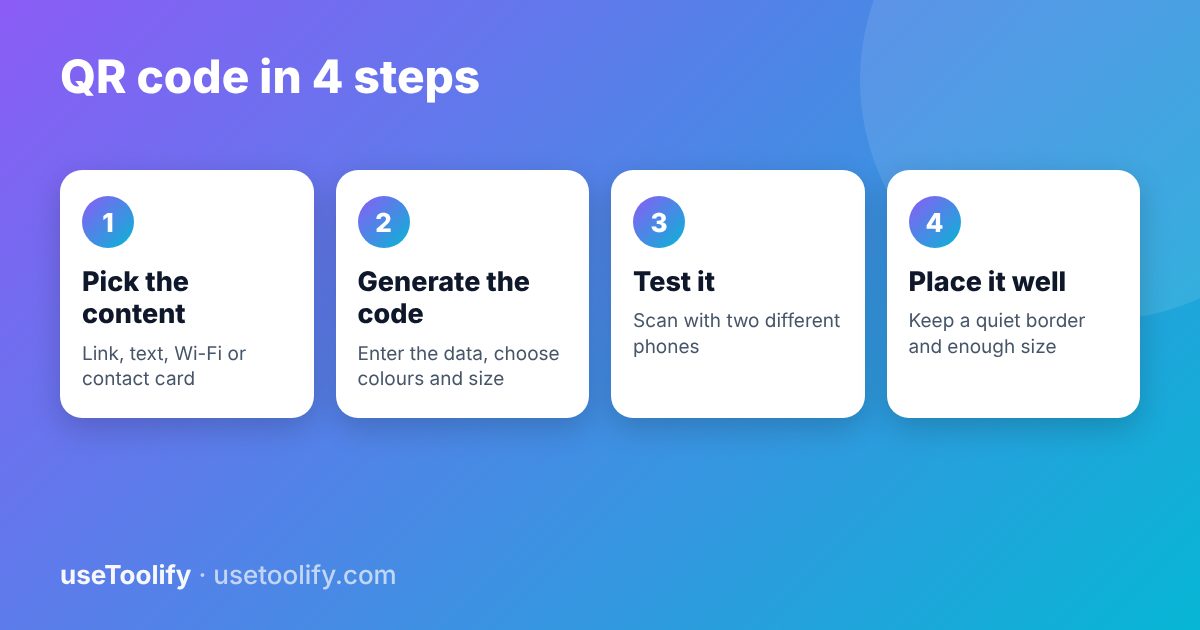
- Open the QR Code Generator.
- Enter the text or link. If the link has special characters or spaces, check it first with URL Encode / Decode.
- Choose a size and colours. Keep the code dark on a light background.
- Download it as an image, preferably in the largest size offered, and print or embed it.
- Test it before using it (see below).
Design Rules That Keep It Scannable
- Contrast. Dark code on a light background scans best. Inverted (light on dark) codes fail on some scanners.
- Quiet zone. Leave a blank border around the code, about four modules wide. Do not let text or images touch it.
- Size. A common minimum is about 2 x 2 cm for printed codes held close, and larger for posters. As a rule of thumb, the scanning distance should be about ten times the code width.
- Keep the data short. The more characters, the denser the pattern, and the harder it is to scan at a small size. Use a short link.
- Error correction. Codes can include extra data so they still work when partly damaged or when a logo covers the middle. The usual levels recover about 7, 15, 25 or 30 percent of the code. Higher levels make the pattern denser.
- Do not stretch it. Keep it square, and never print it on a curved or glossy surface that reflects light.
Test Before You Print
Scan the code on screen, then print one copy at the real size and scan that as well. Use at least two different phones, one older and one newer, and scan from the distance a customer would use. Use the QR Code Scanner to see exactly what is stored in the code, including the full link.
Where to Put It
- At eye level, in good light, with a clear call to action such as "Scan to see the menu".
- Not behind glass that causes reflections.
- On business cards, keep it on the back with enough space, and also print the link as text.
- Always tell people what scanning will do. A bare code with no explanation gets few scans.
Safety: Scan Carefully
Scammers stick fake codes over real ones or send them in messages to steer people to fraudulent pages. Before you open a scanned link, check the address shown on your phone. Never enter passwords or card details on a page you reached from a code you cannot trust. If you place codes in public, check them regularly to make sure nobody has covered them.
Frequently Asked Questions
Are free QR codes permanent?
A static code, like the ones from the useToolify generator, never expires because the data is stored in the picture itself. It only stops being useful if the page it links to goes away.
What is the best size for a QR code?
For print held at arm's length, aim for at least 2 x 2 cm, and use a bigger code for posters. Test at the real distance.
Can I add a logo to my QR code?
Yes, if the code uses a high error correction level and the logo is small. Always test it afterwards, because a large logo can make the code unreadable.
Can I make a QR code for Wi-Fi?
Yes. Use text in the standard Wi-Fi format with the network name, password and security type. Phones then offer to join the network after scanning.
Try the tools mentioned in this article
Free, browser-based, no account needed.
arrow_back Previous
How to Fix Common JSON Errors and Format JSON Online
Next arrow_forward
AIDA vs PAS: Two Copywriting Formulas You Can Use With AI (With Examples)
Get new tool tutorials in your inbox
No spam — just new posts, occasionally.
Comments (0)
No comments yet — be the first to share your thoughts.