How to Remove an Image Background for Free (Clean Cutouts, Transparent PNGs)
Remove a photo background in seconds, keep clean edges around hair and fine detail, and export a transparent PNG or a white-background JPG that marketplaces accept.

In this article expand_more
- When You Need to Remove a Background
- Step 1: Start With a Photo That Is Easy to Cut Out
- Step 2: Remove the Background
- Step 3: Check the Edges
- Step 4: Export the Right Format
- Resize and Compress Afterwards
- Another Option: Blur Instead of Remove
- Common Mistakes
- Frequently Asked Questions
- Can I remove a background without uploading my photo?
- How do I make the background transparent?
- Why is there a white outline around my cutout?
- What background do online stores want?
A clean cutout used to need Photoshop and an hour of careful selection. Today a browser tool can do most of it in seconds. This guide covers when you need a cutout, how to get a clean result, and how to export it for a marketplace listing, a logo, a presentation or an ID photo. Try it with the free Remove Background tool, which processes the image in your browser.
When You Need to Remove a Background
- Product photos for an online shop, where most marketplaces want a plain white background.
- Profile and ID photos that must be on a plain light background.
- Logos and graphics that need to sit on any colour.
- Presentations and posters, where a cutout person or product looks more professional than a boxed photo.
- Thumbnails and social posts, where you want the subject to stand out.
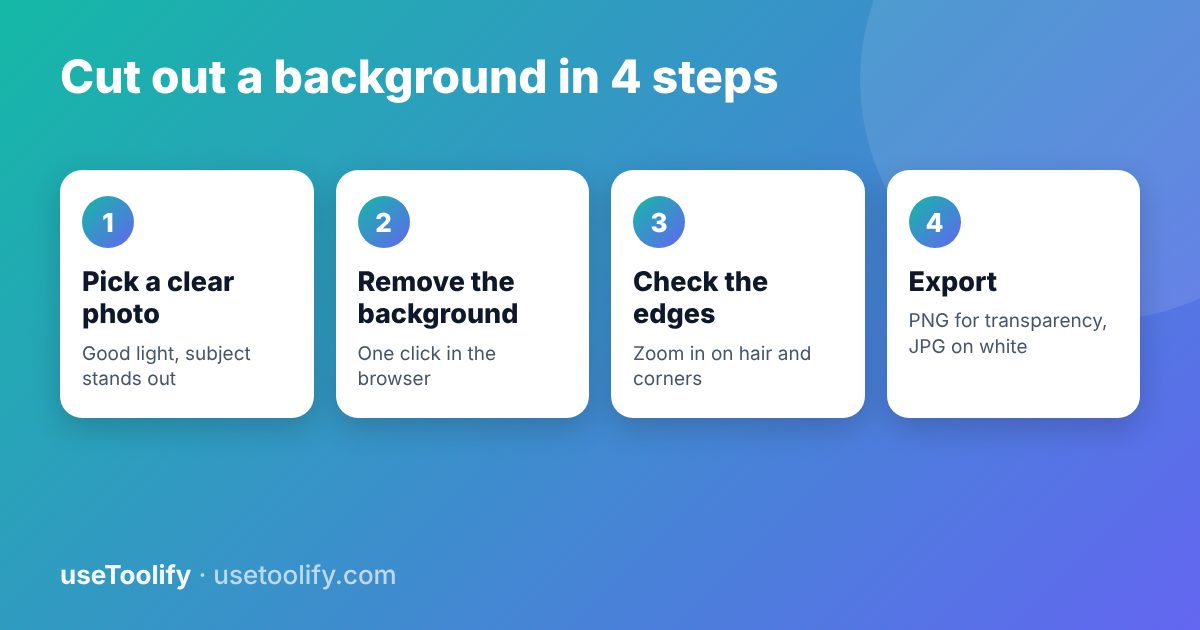
Step 1: Start With a Photo That Is Easy to Cut Out
Automatic tools work by recognising the subject. The easier you make that, the cleaner the result:
- Use good, even light. Hard shadows get mistaken for part of the object.
- Make sure the subject differs in colour from the background. A white mug on a white table is hard.
- Keep the subject sharp and in focus.
- Use a reasonably high resolution, though a huge file is unnecessary.
- For products, shoot on a plain sheet or table and avoid cluttered surroundings.
Step 2: Remove the Background
- Open Remove Background.
- Drop in your photo and wait a few seconds. The first time may take longer because the model has to load into your browser.
- Preview the result on both light and dark backgrounds.
Step 3: Check the Edges
Zoom to 100 percent and look at the trouble spots: fine hair, fur, glasses, thin straps, transparent items such as glass, and the area between a subject's arm and body. If you see a halo of the old background, try again with a sharper original or a higher-contrast photo. A slight softness at the edge is natural. A harsh jagged line is not.
Step 4: Export the Right Format
- PNG keeps transparency. Use it for logos, overlays and design work. It is larger than a JPG for photos.
- JPG has no transparency, so the cutout must sit on a solid colour. Use it for marketplace images and uploads with size limits.
- WebP supports transparency with smaller files, and is a good choice for websites. Convert with the Image Format Converter.
For a white-background JPG, place the cutout on pure white (RGB 255, 255, 255) so it blends with a white page. Many marketplaces ask for a pure white main image, so check the seller guidelines for yours.
Resize and Compress Afterwards
Marketplaces and forms often set a minimum size in pixels and a maximum in KB. Use Resize Image to hit the dimensions, then Reduce Image Size to meet the file limit. Do the resize before the compression, and always keep your original photo.
Another Option: Blur Instead of Remove
If the background is just distracting rather than wrong, a blurred background looks natural and avoids cutout edges. Try Blur Background for portraits and product shots.
Common Mistakes
- Using a low-resolution or heavily compressed original, which gives rough edges.
- Exporting a transparent PNG and then placing it on a page with a dark background without checking the edges.
- Cutting out a subject whose colours match the background.
- Forgetting to keep the shadow. A subject floating on pure white with no shadow can look unreal, so a faint soft shadow is sometimes better.
Frequently Asked Questions
Can I remove a background without uploading my photo?
Yes. The useToolify tool runs the model in your browser, so the photo stays on your device.
How do I make the background transparent?
Remove the background and download as PNG, which supports transparency. JPG fills transparent areas with a solid colour.
Why is there a white outline around my cutout?
That is a leftover edge from the old background. Try a photo with more contrast, or place the cutout on a background close to the original colour.
What background do online stores want?
Many marketplaces ask for a plain white background on the main image, but rules differ. Read the guidelines for the platform you sell on.
Try the tools mentioned in this article
Free, browser-based, no account needed.
arrow_back Previous
Rent Receipts for HRA Exemption: What You Need and How to Create Them
Next arrow_forward
How to Fix Common JSON Errors and Format JSON Online
Get new tool tutorials in your inbox
No spam — just new posts, occasionally.
Comments (0)
No comments yet — be the first to share your thoughts.