How to Make a Passport-Size Photo at Home (Free and Print-Ready)
Skip the studio. Learn the common passport and visa photo sizes, the exact pixel dimensions to use, and how to crop, resize and print several photos on one sheet for free.
In this article expand_more
- Common Passport and Visa Photo Sizes
- Pixels vs Millimetres: Which Number to Use
- Step 1: Take a Good Source Photo
- Step 2: Crop and Resize
- Step 3: Fix the Background
- Step 4: Print Several Photos on One Sheet
- Step 5: Meet an Upload Size Limit
- Common Reasons Photos Get Rejected
- Frequently Asked Questions
- What size is a passport-size photo in pixels?
- Can I use a phone selfie for a passport photo?
- Can I print passport photos at home?
- Is my photo uploaded to a server?
A studio charges for something you can do at home in ten minutes with a phone and a printer. This guide explains what passport and visa photos usually require, which pixel sizes to use, and how to make a print-ready sheet. Everything runs in your browser with the free Passport Size Photo tool, so your photo is not uploaded anywhere.
Requirements differ by country and by application type. Always read the official instructions for your passport, visa or form before you print or submit.
Common Passport and Visa Photo Sizes
These sizes are widely used, but confirm yours with the issuing authority:
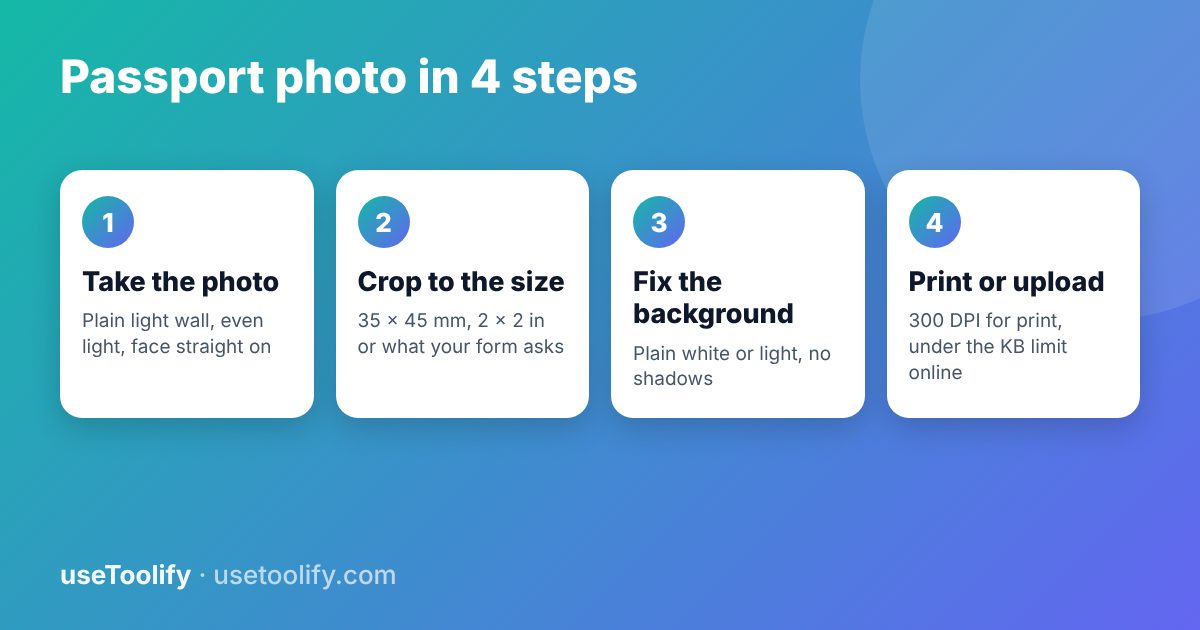
- 35 x 45 mm - used by many countries, including the UK, most of the EU and Australia, for passports and many visas.
- 2 x 2 inches (51 x 51 mm) - used for US passports and visas, and for Indian passports.
- 33 x 48 mm - used for Chinese passports and visa applications.
- 50 x 70 mm - used by Canada for passport photos.
Exam forms and job portals often ask for a smaller, different size such as 3.5 x 4.5 cm. That is the same shape as 35 x 45 mm.
Pixels vs Millimetres: Which Number to Use
Printed photos are measured in millimetres or inches. Online forms usually want pixels or a file size in KB. To convert, multiply inches by the DPI (dots per inch). Print shops use 300 DPI.
- 35 x 45 mm at 300 DPI is about 413 x 531 pixels.
- 2 x 2 inches at 300 DPI is 600 x 600 pixels.
If the form gives pixel limits, follow those. If it only gives millimetres, use the 300 DPI figure above.
Step 1: Take a Good Source Photo
The best fix for a bad photo is a better photo. A few minutes of setup saves rejections later:
- Stand in front of a plain light wall, with a window in front of you rather than behind you.
- Hold the camera at eye level, about an arm and a half away, and use the rear camera.
- Look straight at the lens with a neutral expression and your mouth closed.
- Keep your whole head, including hair, inside the frame with space around it, because you will crop later.
- Avoid shadows on the face or wall, glare on glasses, hats and heavy filters.
Step 2: Crop and Resize
- Open the Passport Size Photo maker and upload your picture.
- Choose the size your application asks for.
- Move and zoom so the face is centred. Most rules want the head to fill roughly 70 to 80 percent of the photo height.
- Download the cropped photo.
If you need a custom size, use Resize Image and enter the exact width and height.
Step 3: Fix the Background
Most authorities ask for a plain white or very light background with no pattern or shadow. If your wall was not clean enough, use Remove Background to cut the subject out, then place it on white. Check the edges around hair at 100 percent zoom, because that is where cutouts look unnatural.
Step 4: Print Several Photos on One Sheet
Printing one photo at a time wastes paper. A 4 x 6 inch photo paper fits about six photos of 35 x 45 mm in a grid. Set the print size to 100 percent or "actual size" so the printer does not shrink the sheet to fit the page, then measure one photo with a ruler before printing the rest.
Step 5: Meet an Upload Size Limit
Online applications often cap the file at 50, 100 or 200 KB. Resize first, then lower the quality in small steps with Reduce Image Size until you are under the limit. Zoom in and check the face. If it looks blocky, go back up a few points of quality.
Common Reasons Photos Get Rejected
- Shadows on the face or behind the head.
- Wrong size or the head too small in the frame.
- Retouched or filtered images.
- Reflections on glasses, or a tilted head.
- A photo that is too old. Many authorities want one taken within the last six months.
Frequently Asked Questions
What size is a passport-size photo in pixels?
For 35 x 45 mm at 300 DPI it is about 413 x 531 pixels. For 2 x 2 inches at 300 DPI it is 600 x 600 pixels. Always check whether your form states its own pixel size.
Can I use a phone selfie for a passport photo?
You can use a phone photo, but not a typical selfie. Wide-angle front cameras distort the face. Ask someone to take the picture with the rear camera from a normal distance.
Can I print passport photos at home?
Yes, if you use good photo paper and print at actual size. Many offices accept home prints, but some require professionally printed photos, so check the rules.
Is my photo uploaded to a server?
No. The useToolify image tools work in your browser, so identity photos stay on your device.
Try the tools mentioned in this article
Free, browser-based, no account needed.
arrow_back Previous
How to Use AI Summaries Without Getting Fooled by Hallucinations
Next arrow_forward
Generative Engine Optimization (GEO) vs SEO: How to Get Cited by AI Search
Get new tool tutorials in your inbox
No spam — just new posts, occasionally.
Comments (0)
No comments yet — be the first to share your thoughts.